
Last Updated on June 7, 2026 by g6nhu
Introduction
From HamClock 4.24 onwards, the backend is hard-coded to OHB which saves having to use these switching scripts. If you’re using a Pi, I recommend first running ‘sudo csi’ to set HamClock back to the default server, rebooting your Pi and then reinstalling using the commands here. That way, you won’t need to use the scripts at all. Your existing HamClock settings will be retained.
If you’re using a Quadra, my suggestion is to download a new factory restore image from here (or order a new SD card if you can’t write one yourself) and reflash with a new master image that has OHB already hard-coded.
The backend switching scripts do still work and will continue to be supported.
Open-hamclock-backend (OHB) – For full details see here. This is an open-source backend being worked on by a group of radio amateurs. You can either run an instance yourself, or if you’d rather, you can simply connect to their server.
If you’re using an Inovato Quadra or equivalent
The scripts below work, they’ve been tested on all model Quadras. However, if you download or purchase a recovery image from here, it will be pre-configured to OHB and you won’t need to use them.
If you’re using a Raspberry Pi or another Linux system
This has been tested on multiple Raspberry Pis and computers running Ubuntu Linux. The scripts all use basic Linux commands so this should be very portable.
You don’t need to understand Linux to use these scripts, just follow the instructions to the letter. Commands are case sensitive, make sure you enter them exactly as shown or ideally, copy and paste if possible.
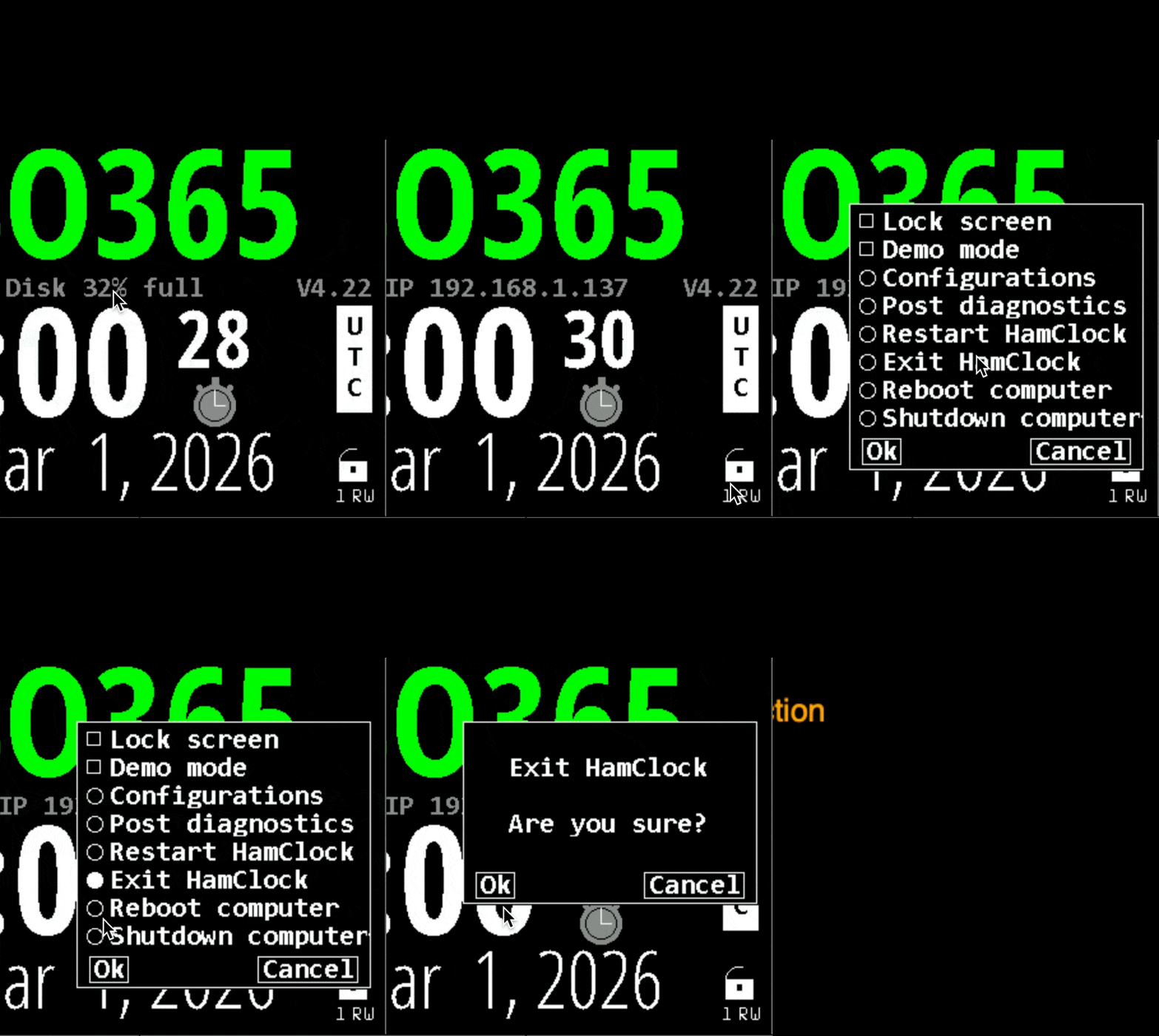
Before you start, Exit HamClock via the padlock. Click the padlock, select Exit HamClock, click Ok and then Ok again.
Open a terminal on your computer. If you’re using a Pi, it’s the 4th icon from left in the top left corner, or you can SSH into the Pi in the normal way.
Enter the following command which will download the scripts you’re going to use.
Note that if you installed Raspberry Pi OS Trixie after 14th April 2026, you will be prompted for your password when you use ‘sudo’. This is due to a new security update.
curl -fsSL https://hamclock.co.uk/tools | sudo bashIf you can’t find the | symbol on your keyboard, it’s often with the backslash and will look like one of these. The version on the left is most common but it could be either.


If you’re using Raspberry Pi OS Trixie (or newer), enter the following command. If you don’t know what version operating system you’re using, enter it anyway. It won’t run on an older operating system and if nothing needs changing on Trixie, it won’t do anything. Without this, /etc/hosts will reset itself after a reboot if you’re using Trixie. It will also resolve the same issue on Ubuntu 25 and onwards.
sudo fix-hostsYou will get one of three responses:

If you were prompted to reboot, do it now.
sudo reboot nowOnce your computer has restarted, you must close HamClock before proceeding.
Click the padlock, select Exit HamClock, click Ok and then Ok again.
Now you need to select the new backend for HamClock.
Log back into your Pi and open a terminal as described earlier, or SSH in.
Switching backends is very easy using the scripts I’ve provided.
To switch the backend, type the following:
sudo ohb
There is also the ‘what’ command which will check your existing configuration and suggest changes if needed.
sudo whatThen reboot for the changes to take effect.
sudo reboot nowConclusion
That’s it. The OHB backend will now be used by HamClock. The process of switching will automatically clear the cache so the different backend should come into play immediately.
Video
Everyone loves a video. Here’s how it works in practice, showing the absolute basics.
