
Last Updated on August 30, 2026 by g6nhu
I’ve been working on something. Actually, I’ve been working on it for quite a while now, and what started as a fairly simple idea has turned into something considerably bigger.
It’s called QCluster, and it’s a native DX Cluster client for macOS.
Download QCluster here: https://qso365.co.uk/qcluster/#download
I’ve used DX clusters for years. I run a DXSpider node myself, I spend far too much time watching spots go past and, like a lot of radio amateurs who use Macs, I’ve never really found a cluster client which does exactly what I want.
There are web interfaces. There are logging programs which have cluster windows bolted onto them. There are ways of running Windows software on a Mac. And, of course, there’s always a terminal window.
None of those were quite what I wanted. So I wrote my own.
What is QCluster?
QCluster is a proper native macOS application for connecting to a DXSpider cluster.
It’s not a web page wrapped in an application and it doesn’t require Java, Wine, a Windows virtual machine or any other nonsense. It’s written specifically for the Mac and behaves like a Mac application.
At its simplest, you give it your callsign, press the Connect button and spots start appearing. But there’s quite a lot more going on underneath.
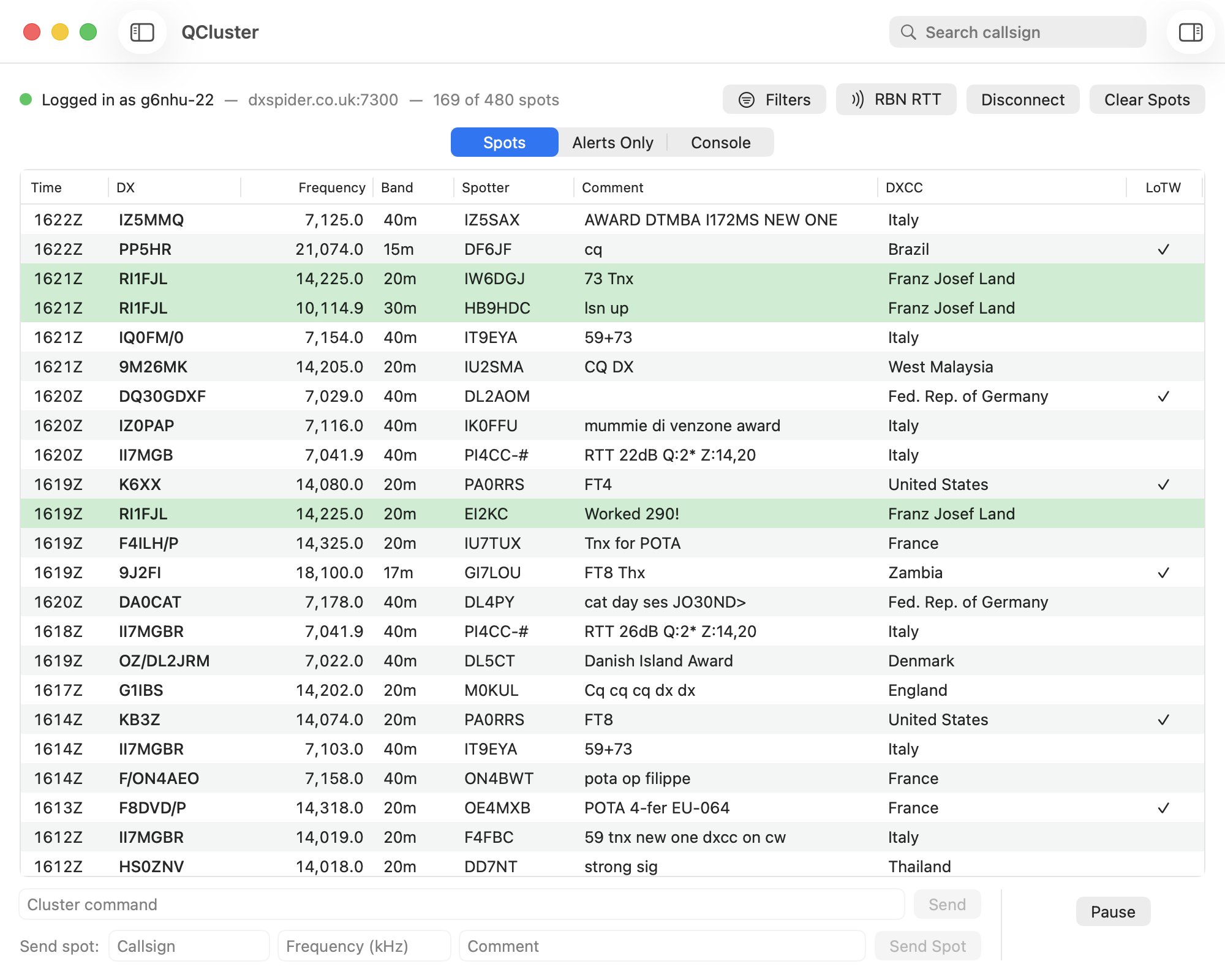
The spot display
The main QCluster window is deliberately straightforward. I don’t want a DX Cluster client where the actual DX spots occupy a tiny rectangle surrounded by dozens of buttons.
Spots are displayed in a proper table with the useful information separated into columns.
These include:
- Time
- DX callsign
- Frequency
- Band
- Spotter
- Comment
- DXCC information
- LoTW status
The columns can be resized and QCluster remembers how you’ve set them up.
There’s a normal view and a compact Small View for when you want QCluster sitting in a corner of the screen without taking over the entire desktop.
Double-clicking a callsign will open it on QRZ, and the time display can be switched between UTC and local time.
You can search the current spots by callsign and pause the display when you want to look through something without the list constantly moving underneath you.
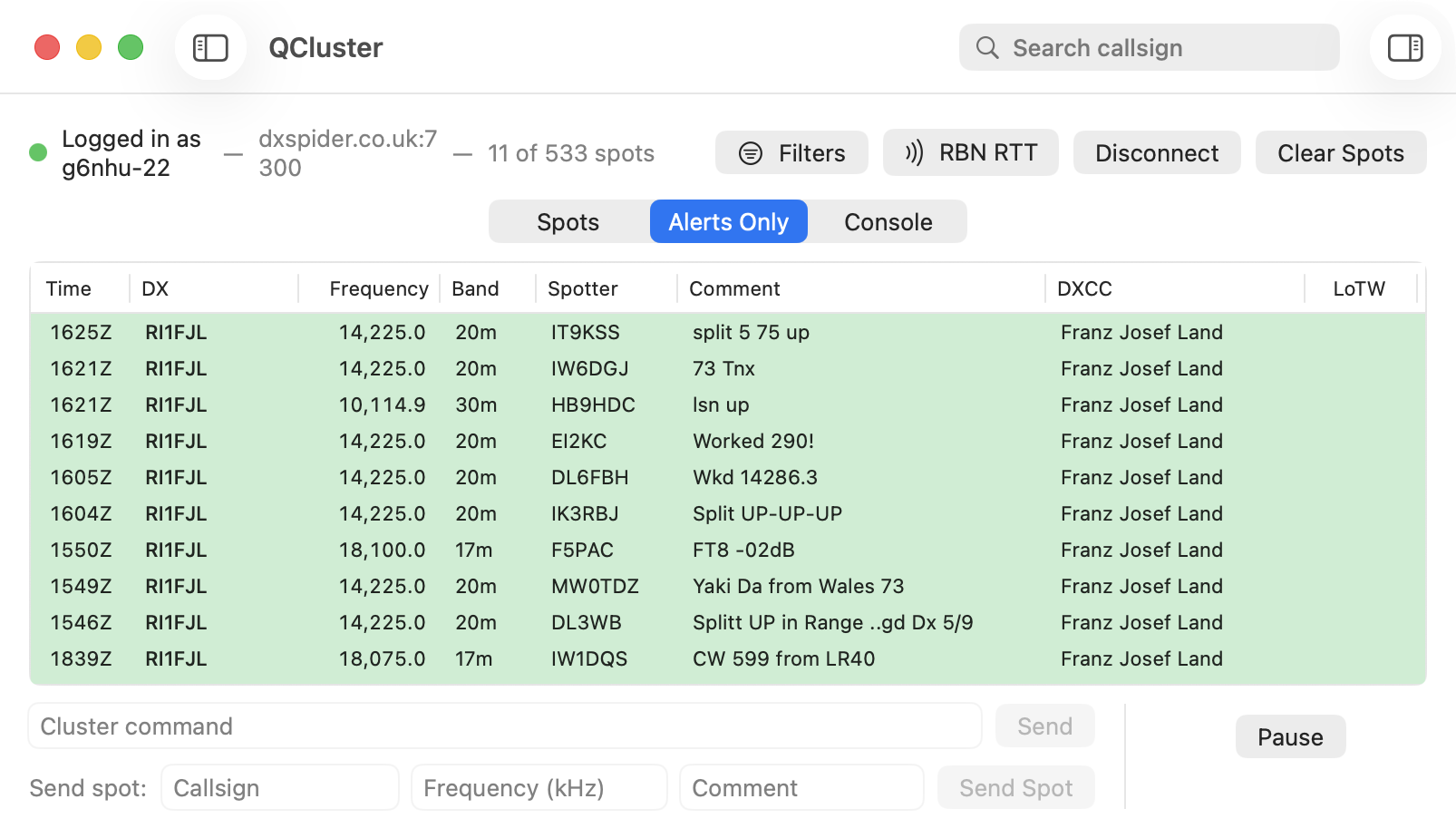
There’s also an Alerts Only view which does exactly what the name suggests. Here’s QCluster in Small View showing just the alerts. I’m watching for Franz Josef Land at the moment.
Filtering
This is probably where QCluster has grown the most.
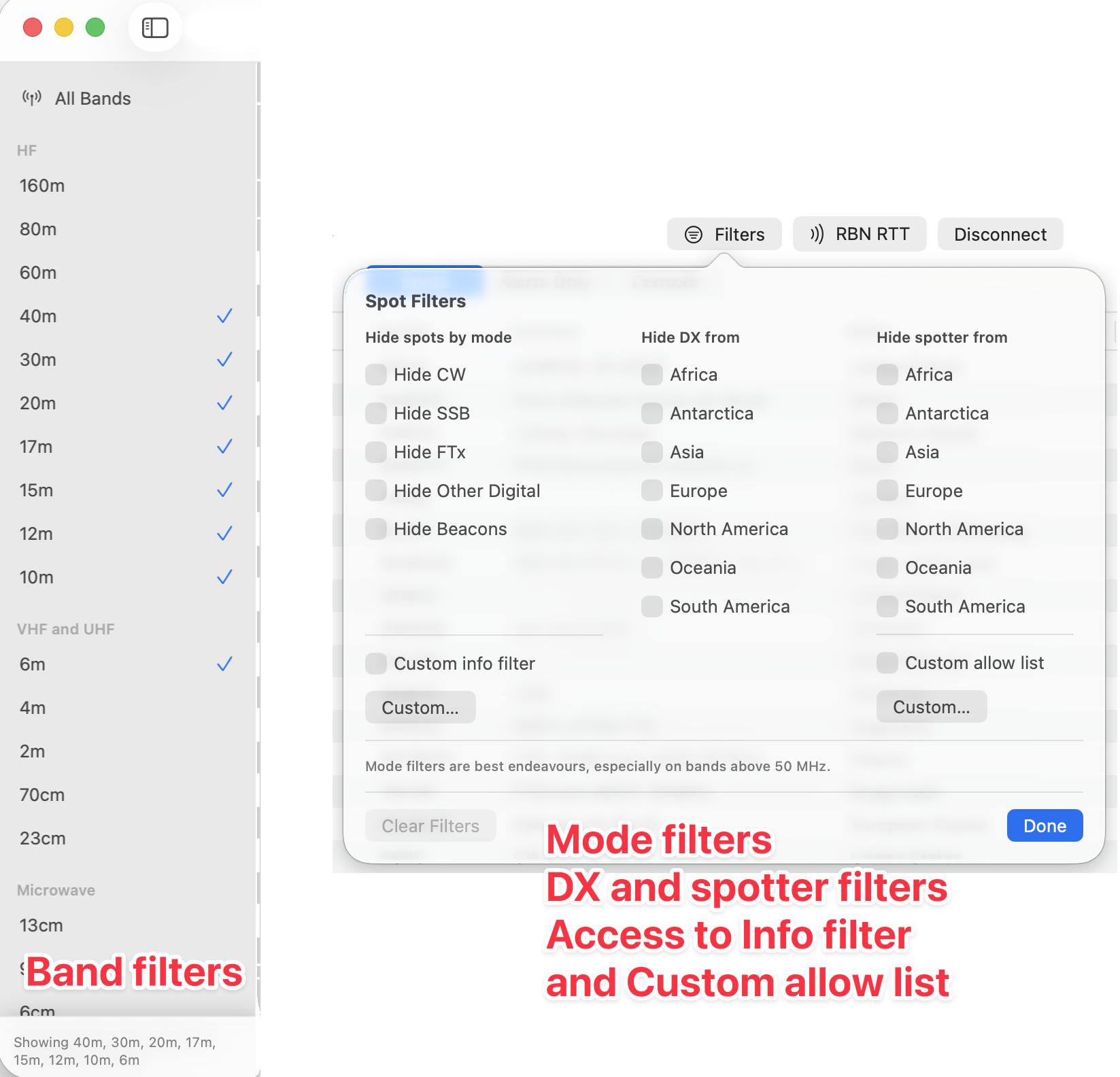
DXSpider itself has a powerful (but very complicated) filtering system so it’s just easier to take a full stream and filter locally. For that reason, QCluster will detect existing filters at the remote cluster node and offer to remove them for you when you connect.
You can:
- Select individual amateur bands
- Enable or disable whole HF, VHF, UHF and Microwave groups
- Hide FT8, FT4 and FT2
- Hide CW
- Hide SSB
- Hide other data modes
- Hide beacons
- Hide DX from selected continents
- Hide spots made by stations on selected continents
- Allow spots only from selected spotter entities
- Hide spots with certain words in the comments
There’s also a geographical spotter filter.
Give QCluster your Maidenhead locator and a distance and it can work out which DXCC entities fall within that radius. That means, for example, you can restrict the display to spots coming from a sensible geographical area around you rather than simply selecting an entire continent.
The filtering isn’t done by blindly looking at the frequency either. QCluster also examines spot comments and uses that information when determining the mode.
Alerts
Sometimes I don’t care about most of the spots going past. I care about that callsign, that DXCC or that band.
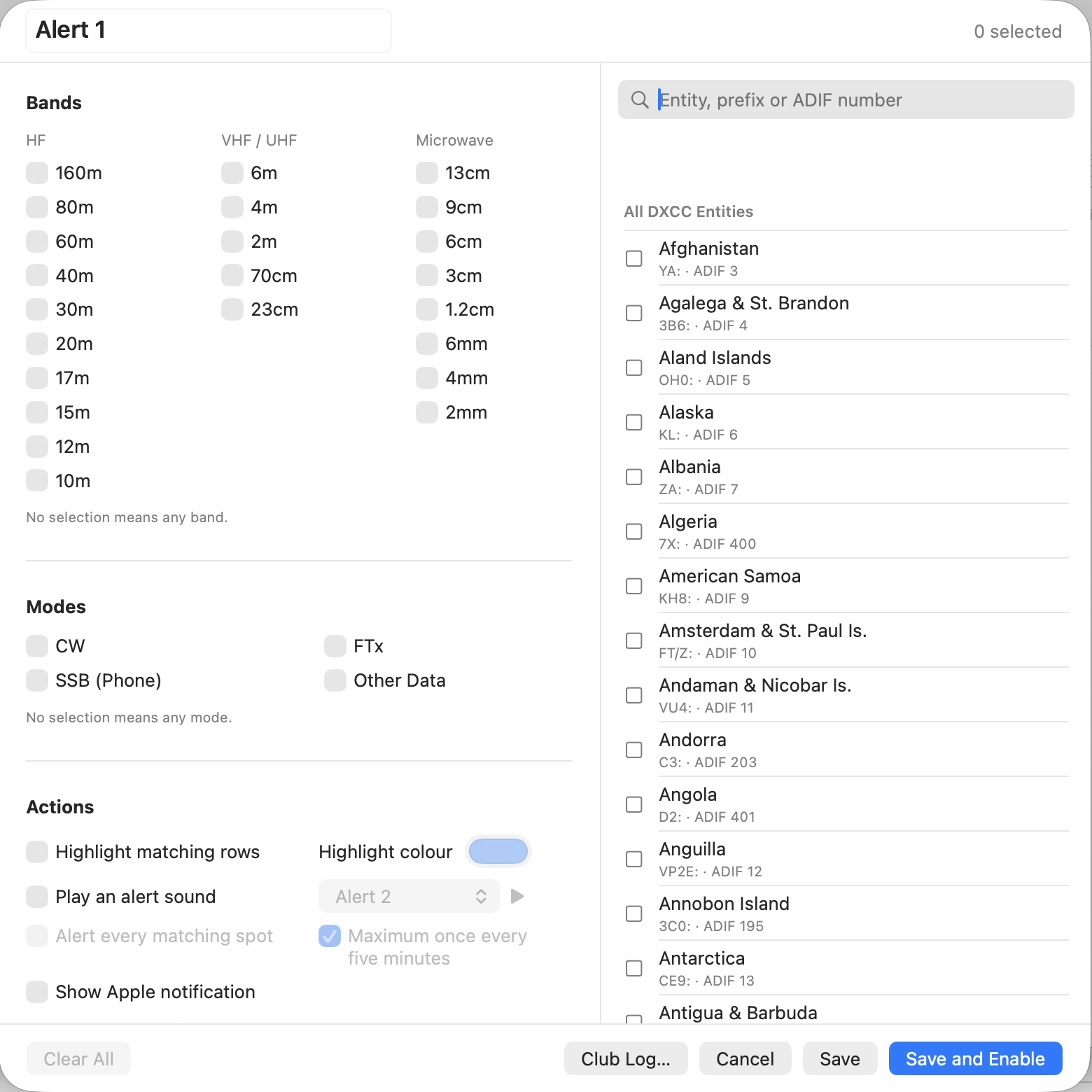
QCluster has five configurable alerts.
An alert can use combinations of things such as:
- DXCC entity
- Callsign
- Band
- Mode
Matching spots can be highlighted with your choice of colour and can generate an audible alert.
The sound can be the standard macOS alert or one of QCluster’s own alert sounds, and you can choose whether it sounds for every matching spot or only once within a five-minute period.
There are also macOS notifications if you want QCluster to get your attention while you’re doing something else.
One of the alerts is specifically designed for callsigns and supports wildcard matching, so it can be used for stations, expeditions or whatever else you happen to be waiting for.
Club Log
QCluster can use your Club Log data to build alerts based on what you’ve worked and confirmed.
That makes it possible to create things such as:
- DXCC entities not worked
- DXCC entities worked but not confirmed
- Separate Mixed, CW, SSB and Data requirements
- Band-specific requirements
Import the data, choose what you’re interested in and QCluster does the rest.
This has become one of my favourite parts of it. Instead of staring at hundreds of spots wondering whether something matters, the interesting ones can simply announce themselves. I have a single master alert with all my unworked DXCC entities. Mind you, with only 28 left to work, if one were to pop up, I’d be very surprised!
RBN control
If the DXSpider node you’re using supports the Reverse Beacon Network, QCluster provides controls for that as well.
You can independently enable:
- CW
- Beacons
- PSK
- RTTY
- FT modes
QCluster reads the current state from the cluster rather than just assuming what you’ve got switched on.
Sending spots and cluster commands
QCluster isn’t just a display.
There’s a Send Spot section where you can enter a callsign, frequency and comment and send the spot straight to the cluster.
There’s also a normal cluster command field with command history, so you’re not prevented from using DXSpider directly just because there’s a GUI in front of it.
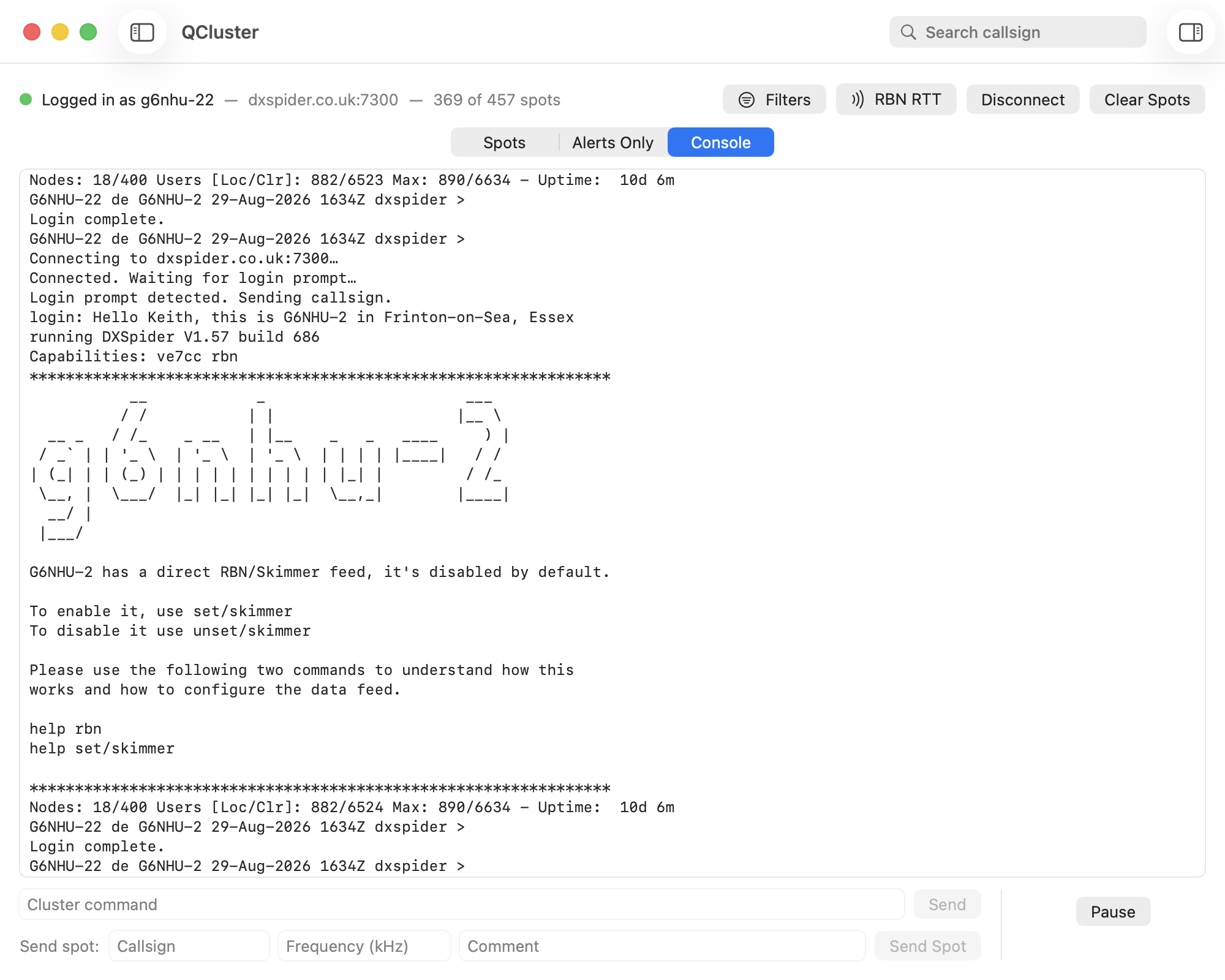
Switch to Console and you get a more conventional view of the connection, including the cluster MOTD and responses to commands.
Local feeds
This was important to me because a cluster client shouldn’t become a dead end. QCluster can provide the spots it receives to other software on the same network using both telnet and UDP. The UDP output can send either everything or alerts only.
That means QCluster can sit between the DX cluster and other software without requiring everything on the network to establish its own external cluster connection.
Backup cluster support
Internet connections fail. Servers fail. Things get rebooted. So QCluster has both a primary and a backup DX Cluster configured.
For your convenience, the backup operation is enabled by default so QCluster will automatically switch to the backup if the primary becomes unavailable.
While it’s connected to the backup, it periodically checks the primary and switches back when it becomes available again. Seamlessly. You won’t even notice the switch.
It knows about DXCC and LoTW
QCluster uses CTY data locally for callsign and DXCC identification and can use the LoTW user activity data to show whether a station has uploaded to Logbook of The World recently.
Both data files can be updated from within QCluster, and it’ll warn you when they’re getting old.
I wanted this information available immediately. I don’t want to have to send a request across the Internet every time a spot arrives just to find out what country a callsign belongs to or whether the DX uses LoTW. You can also click the LoTW column so it only shows stations who have uploaded in the last year. Hovering over the tick will show the exact date of their last upload.
Registration
QCluster itself doesn’t require an account or subscription. It’s free, it will always be free.
The default DX cluster does require QCluster users to register before they can send spots, mainly because an unrestricted anonymous route for injecting spots into the network would be a spectacularly bad idea.
QCluster detects whether you’re registered and provides the registration process from within the application. Click the ‘Register’ button and an email will open in your default email client. Click send, return to QCluster and wait.
You can still receive spots while unregistered.
A few other things
There are lots of smaller bits which aren’t really headline features but make a difference when the program is running all day:
- Automatic connection on startup
- Automatic reconnection after a lost connection
- Recovery after the Mac sleeps and wakes
- Connection watchdog to detect a dead cluster session
- Configurable update checking
- Persistent window and column sizes
- Normal and compact display layouts
- QRZ lookup
- UTC or local time
- Search
- Pause and resume
- Callsign and frequency validation when sending spots
- Support for callsigns with SSIDs
- Native Apple Silicon support
And probably several things I’ve forgotten.
Why did I write it?
Mostly because I wanted it! That’s generally how these things start.
I’ve been a radio amateur since 1982 and DX cluster systems are something I’ve used for a very long time. I also run a very busy DXSpider node, so I’m in the slightly unusual position of being able to work on both ends of the connection.
QCluster has therefore been written around the way I actually use a cluster rather than around a theoretical list of features.
It’s also been running for long periods against real, busy DXSpider nodes. That’s exposed all sorts of oddities that don’t appear when you connect to a test server for ten minutes and declare the job finished.
Is it finished?
Software is never finished, lol. QCluster has gone from “I wonder if I can do this?” to something I now leave running and actually use. Other people are using it as well, which is particularly useful because they invariably find ways of doing things that I’d never considered.
I’m still adding things, changing things and occasionally wondering why something that worked perfectly yesterday has decided not to work today. That’s software.
QCluster is real, it works and it’s become the DX Cluster client I originally wanted to have on my Mac.
Where to get it?
There’s a link in the menu at the top for QCluster – macOS DX cluster access software, and in the Useful links section. That takes you to an info page with a link to download. The download button shows the version number, release date and MD5.
https://qso365.co.uk/qcluster/#download
Or you can download the dmg file directly here: https://qso365.co.uk/qcluster/qcluster.dmg
Installing QCluster
Open the downloaded qcluster.dmg, then drag the QCluster icon onto the Applications shortcut in the window that opens. Once it’s copied across, you can eject the disk image and launch QCluster from your Applications folder as normal.
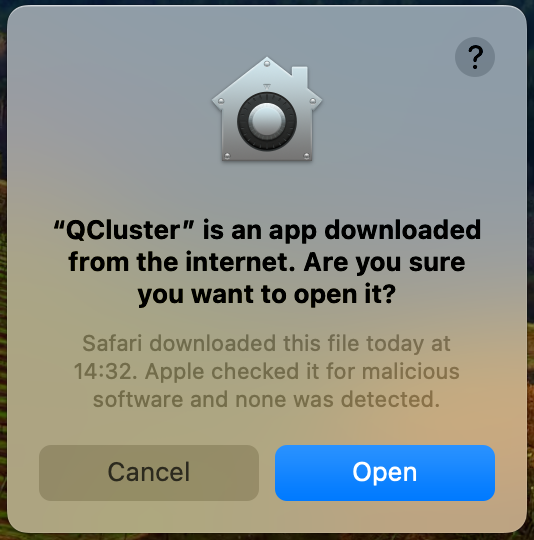
QCluster is notarised by Apple, so on first launch macOS will simply ask you to confirm you want to open an app downloaded from the internet. Click Open and you’re in. After that, it launches normally like any other app.
What does it run on?
Any Mac running macOS Sonoma or newer, whether it’s Intel or Apple Silicon. I can’t comment about performance on an Intel Mac, I’ve only used it on M1 and M2 based computers.
Conclusion
If you’re a radio amateur with a Mac, you should be using QCluster. If you don’t have a Mac, now’s the time to consider buying one, so you can use QCluster!
Website: https://qso365.co.uk/qcluster
Direct download: https://qso365.co.uk/qcluster/qcluster.dmg
Groups.io support group: https://groups.io/g/qcluster
